How To Create A User Generated Testimonial Feature
Learn how to build a dynamic testimonial section in Webflow CMS. Follow this guide to design, develop, and integrate testimonials with Airtable and make.com. Perfect for e-commerce stores and directory sites.



How to Design and Style a Testimonial Section in Webflow
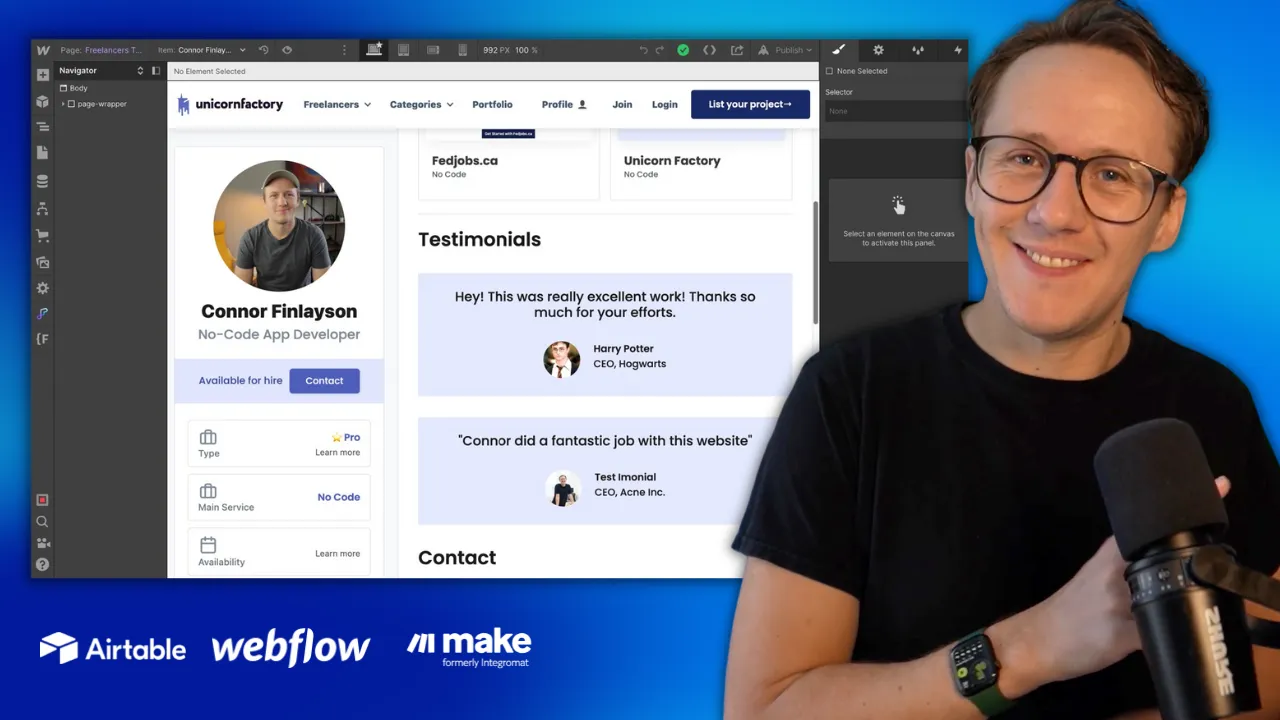
The first step is to design the layout for your testimonial section in Webflow. Start by deciding where this section will fit within your existing site. For example, you might add it beneath a freelancer’s profile or a product page. To speed up the design process, you can use pre-designed components from tools like Relume, which offers a variety of layouts for Webflow. Simply copy your preferred testimonial layout, paste it into your Webflow project, and customize the styles to fit your branding. After structuring the section, refine the design by adding elements such as the client’s name, job title, company, and testimonial text. Keep the layout clean and readable for a polished look.
Setting Up Linked Collections in Webflow CMS
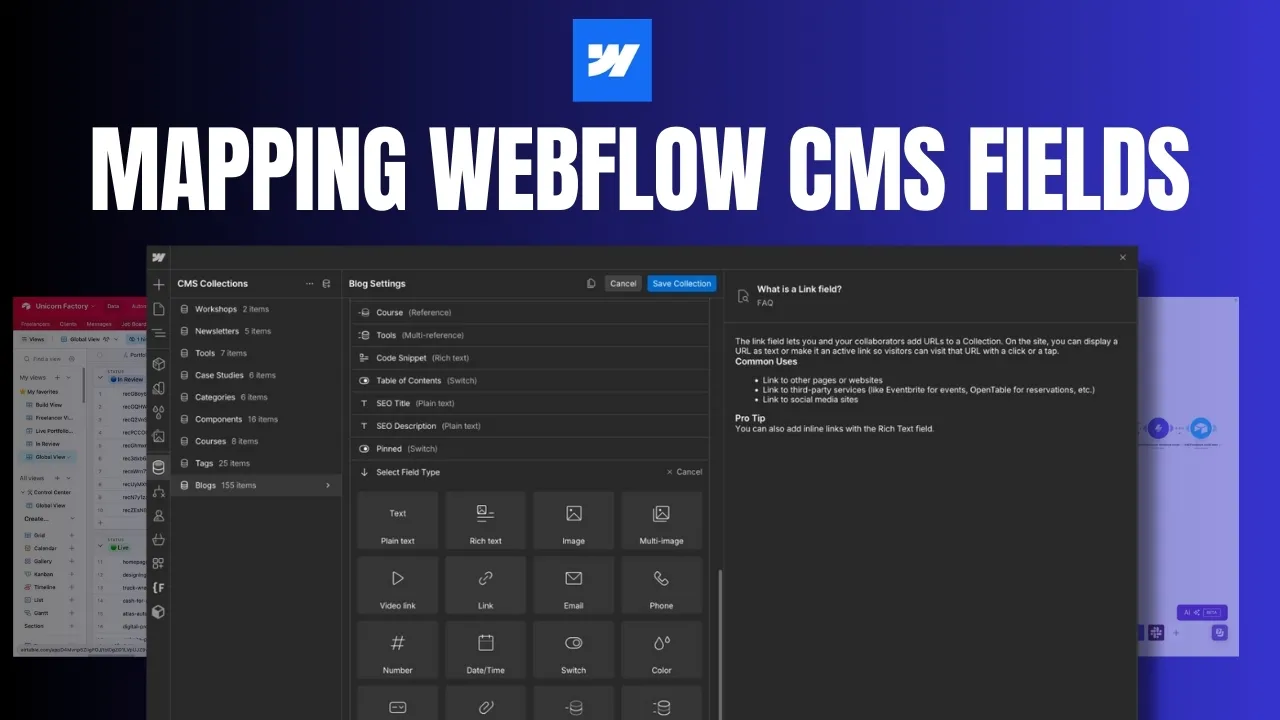
Dynamic content is the heart of this workflow. In Webflow CMS, create a new collection called “Testimonials” with fields for:
- Testimonial text
- Client name
- Job title and company
- Client image Next, add a reference field to link testimonials to other collections, such as freelancers or products. This connection ensures each testimonial is displayed on the correct CMS page. Not sure how to structure your collections? Check out my guide on building relational CMS collections in Webflow for additional tips.
How to Organize Data with Airtable
Managing your testimonial data in Airtable makes it easy to scale as your business grows. Start by creating a table with fields matching your Webflow CMS, including a status field for approval workflows. Airtable’s flexibility lets you handle everything from client information to approval statuses seamlessly. For more insights into using Airtable effectively, see my detailed overview on Airtable.
Automating Testimonial Management with Make.com
Automation is where the magic happens. Using Make.com, you can connect Airtable to Webflow, ensuring that approved testimonials are automatically added to your site. Here’s a quick outline of the workflow:
- Trigger: Set Make.com to watch Airtable for new or updated records in a filtered view (e.g., “Approved Testimonials”).
- Action 1: Send the testimonial data from Airtable to Webflow, mapping each field appropriately.
- Action 2: Update Airtable with the Webflow item ID for future reference. For a deeper dive into Make.com’s capabilities, read my tutorial on streamlining workflows with Make.com.
Scaling and Enhancing Your Testimonial Section
Once the basics are in place, you can scale this feature further:
- Client Submission Forms: Allow clients to submit testimonials directly via a Webflow or Airtable form. Tools like [Jotform]() make this process even easier.
- Star Ratings or Custom Fields: Add new fields to enhance the testimonial display, like a star rating system or optional logos. As you grow, these additions will help you maintain a professional, scalable system.
Ready to learn more? Check out our Playbooks for step-by-step guidance.
View PlaybooksContinue Reading