Turn Video Transcripts Into Blog Posts in Seconds with Tella MCP
Learn how to convert Tella video transcripts into publication-ready blog posts using Claude and MCP. Save 90% of your content repurposing time.
Turn Video Transcripts Into Blog Posts in Seconds with Tella MCP
One of the most time-consuming parts of content creation is repurposing. You spend hours creating a great video, then spend another hour transcribing it, formatting it, and turning it into a blog post. What if you could do all of that in under a minute?
With Tella MCP and Claude, you can. In this guide, I'll show you the exact workflow I use to transform video content into publication-ready blog posts automatically.
Watch the full tutorial: See this workflow in action as I turn a Tella video into a blog post in under a minute.
Prerequisites: Make sure you have Tella MCP installed in Claude Desktop. See Part 1: Getting Started with Tella MCP for setup instructions.
Table of Contents
- The Traditional Workflow (The Slow Way)
- The One-Prompt Method
- Step-by-Step Walkthrough
- Claude Desktop's Document Feature
- Save Time with Projects
- Extend with Other MCPs
- Bonus: Generate Follow-Up Ideas
- Troubleshooting
- Real Example: Tella API Video to Blog Post
- Advanced Workflows
- Key Takeaways
- Resources
- FAQ
The Traditional Workflow (The Slow Way)
Before automation, here's what video-to-blog repurposing looked like:
- Export video from Tella (2 minutes)
- Upload to YouTube or transcription service (5 minutes)
- Wait for transcription (10-30 minutes)
- Copy transcript to a document (1 minute)
- Paste into ChatGPT for formatting (2 minutes)
- Copy and paste sections back and forth (10 minutes)
- Format in your blog editor (15 minutes)
- Add images and polish (10 minutes)
Total time: 55-85 minutes per video
And that's just for one piece of content. If you create multiple videos per week, this adds up to hours of manual work.
The One-Prompt Method
Here's the secret: you don't need a complex multi-step workflow. One prompt does it all.
Instead of multiple back-and-forth messages, here's the single prompt that transforms your video into a publication-ready blog post:
"Can you please turn this video into an SEO optimized blog post.
Use my affiliate link [your-affiliate-link] whenever you mention Tella.
Use the chapters as H2 section titles."
That's it. One prompt.
What This Does
With this single command, Claude will:
- ✅ Retrieve the video transcript automatically
- ✅ Analyze the chapters Tella created
- ✅ Generate SEO-optimized content
- ✅ Structure it with proper H2 headings from chapters
- ✅ Insert your affiliate links where relevant
- ✅ Create a complete, formatted blog post
Time: Literally seconds.
As shown in the video above, what used to take 10-15 minutes now takes seconds. You don't need to manually copy transcripts, format sections, or structure content. Claude handles everything.
Customize the Prompt
You can adapt this one-prompt method to your needs:
"Turn this video into an SEO optimized blog post.
Use chapters as H2 titles.
Keep it under 1200 words.
Include a TL;DR section at the top.
Use my affiliate link [link] for all tool mentions.
Write in a conversational, friendly tone."
The more specific you are, the better the result. But the beauty is: it's still just ONE prompt.
Step-by-Step Walkthrough
Let's break down exactly how this works in practice. Here's the full conversation flow:
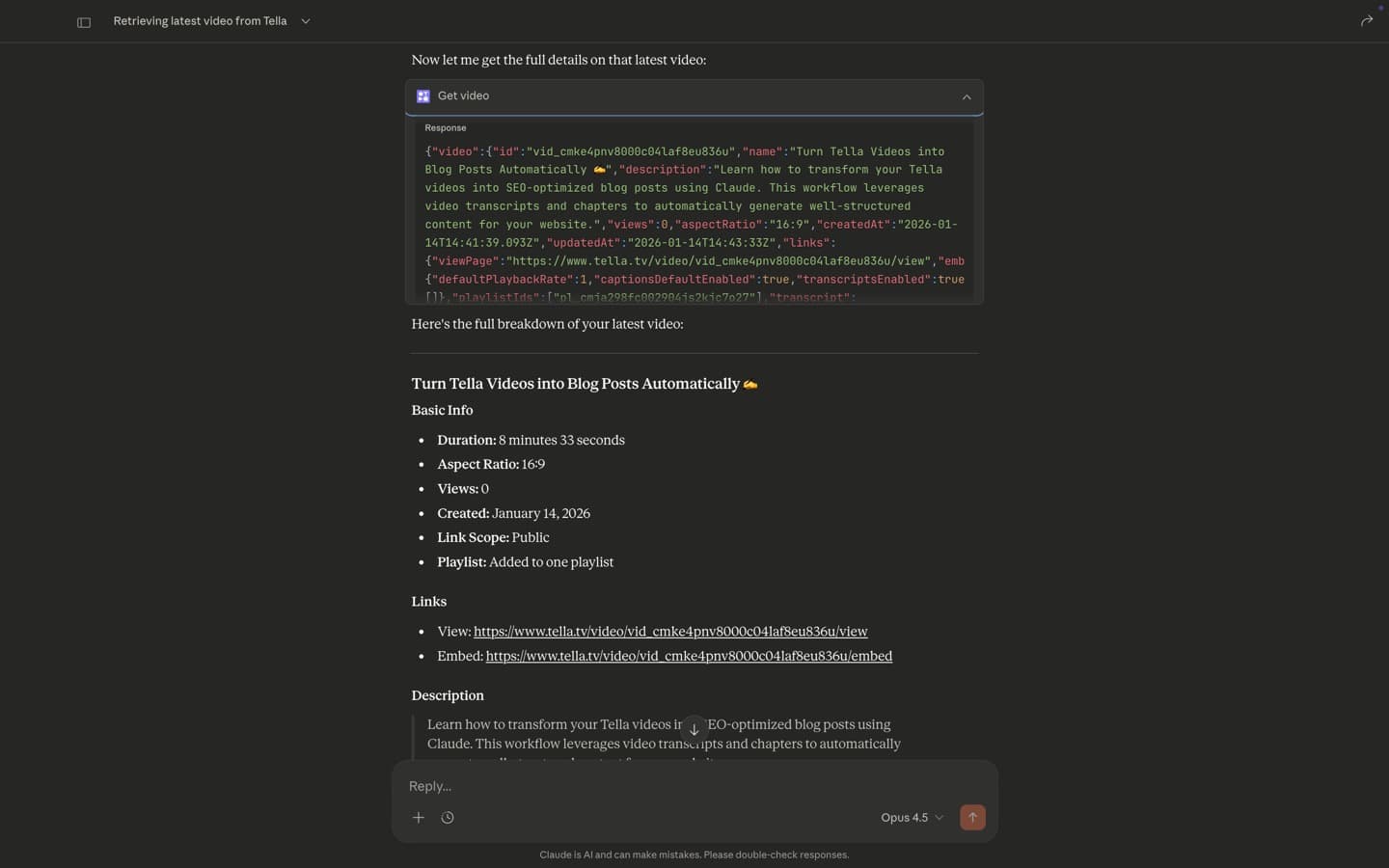
Step 1: Retrieve Your Video
Start by asking Claude to get your most recent video:
"Can you retrieve the last video I made from my Tella account?"
What happens:
- Claude connects to your Tella workspace
- Finds your most recent video
- Returns the video details
If it doesn't work the first time: Sometimes you need to retry. Try this instead:
"Can you retrieve the last 5 videos in my Tella account?"
Then identify which one you want to work with.
From the video: "Sometimes you're just going to have to try once or twice to make it happen. This is very new, but I found it to be very reliable. You just need to usually tinker with it once or twice."
Step 2: Get Video Details
Now ask Claude to get the full details including chapters and transcript:
"Can you get me the [video title] video?"
Or if you know the position:
"Can you get me the unlock your Tella video?"
What happens:
- Claude retrieves all the chapters Tella created
- Gets the full transcript with timestamps
- Shows you a summary of the video content
This gives Claude everything it needs for the next step.
Step 3: The Magic Prompt
Now use the one-prompt method from earlier:
"Can you please turn this video into an SEO optimized blog post.
Use my affiliate link [your-link] whenever you mention Tella.
Use the chapters as H2 section titles."
What happens next:
- Claude processes the entire transcript
- Uses the chapter markers as H2 headings
- Writes SEO-optimized content
- Inserts your affiliate links where appropriate
- Creates an actual .docx or Google Doc file (in Claude Desktop)
Step 4: Open and Review
If you're using Claude Desktop, it creates an actual document file:
- Click to open it in Google Docs or download as .docx
- Make quick edits if needed
- Ready to publish
If you're using ChatGPT or Claude in browser:
- It displays formatted text in the chat
- Copy and paste into your blog editor
Claude Desktop's Document Feature
This is where Claude Desktop really shines compared to other AI tools.
Real Documents, Not Just Text
When you ask Claude Desktop to create a blog post, it doesn't just show you text in a chat window. It actually creates:
- Google Docs that open in your browser
- Word documents (.docx) you can download
- Properly formatted files with headings, formatting, structure
This means you can:
- ✅ Click and immediately edit in Google Docs
- ✅ Download and open in Microsoft Word
- ✅ Share the doc link with team members
- ✅ Skip copy/paste altogether
Example from the Video
In the demonstration, after the one prompt:
- Claude generates the content (30 seconds)
- Opens an actual Google Doc/Docx file
- Shows the fully formatted blog post
- Ready to edit, download, or publish
Quote from video: "Something that would otherwise take you 10 to 15 minutes can actually be done in a matter of seconds, which is super exciting."
Save Time with Projects
Want to make this even faster? Set it up once, use it forever.
Use Custom Instructions
Claude Desktop has a feature called "Projects" that lets you save system instructions. Here's how to set it up:
1. Create a Project
- In Claude Desktop, create a new Project
- Name it "Blog Post Generator" or similar
2. Add Custom Instructions
Add instructions like:
When I ask you to turn a video into a blog post, always:
- Use SEO best practices
- Keep it under 1500 words
- Use chapters as H2 section titles
- Include my affiliate link: [your-link]
- Write in a conversational but professional tone
- Add a TL;DR section at the top
- Include bullet points for key takeaways
- End with a call-to-action
3. Use It Every Time
Now you can just say:
"Turn this video into a blog post"
That's it. Claude remembers all your preferences from the Project instructions.
Benefits
- ⚡ Faster prompts (no need to repeat requirements)
- 🎯 Consistent formatting across all posts
- 🔗 Auto-includes affiliate links
- ✍️ Maintains your brand voice
Extend with Other MCPs
Don't stop at creating the blog post. Publish it automatically too.
Connect Other Tools
Most good software companies now have MCP connections. You can add:
- Notion MCP → Publish directly to your Notion workspace
- Webflow MCP → Publish to your Webflow CMS
- WordPress MCP → Post to WordPress automatically
End-to-End Example
1. "Turn this video into a blog post" (Claude creates it)
2. "Create this post in Notion" (Claude publishes it)
Done. From Tella video to published Notion page in one conversation.
How to Set This Up
- Go to Claude Desktop Settings → Connectors
- Add the MCP for your publishing platform
- Enable it in your chat alongside Tella MCP
- Use both in the same conversation
From the video: "Tools like Claude Desktop have connections to things like Notion or Webflow. Most good software companies will have an MCP connection. All you need to do is enable the tool you want to connect to."
Bonus: Generate Follow-Up Ideas
Here's a quick win that doesn't require its own video but is incredibly useful.
Content Ideation from Transcripts
After you've created your blog post, ask:
"Pretend someone has watched this video. What are 3-5 great follow-up posts I could create?"
What Claude does:
- Analyzes the transcript
- Looks at the blog post structure
- Identifies natural follow-up topics
- Suggests specific angles
Example Results
From the video, Claude suggested:
- "From Video to Social Media Clips"
- "Tella Repurposing for Webflow"
- "Advanced MCP Workflows"
These become your content calendar for the next week.
Troubleshooting
Real talk: this is new technology. Here's what to expect.
Authentication Issues
Problem: "It's asking me to connect again"
Solution: Click the Connect button. Usually takes one click and it works.
Video Not Found
Problem: "It looks like it hasn't found my videos"
Solution: Try different phrasings:
- Instead of "last video" → try "last 5 videos"
- Reference by title instead of position
- Retry the command once or twice
From the video: "Sometimes you're just going to have to try once or twice to make it happen. I mean this is very, very new, but I found it to be very reliable. You just need to usually tinker with it once or twice."
Transcript Not Available
Problem: Video doesn't have a transcript yet
Solution:
- Wait a few minutes after recording
- Tella auto-generates transcripts
- Check in Tella dashboard if transcript is ready
Real Example: Tella API Video to Blog Post
Let me show you a real example. I had a 7-minute video titled "Introducing the Tella API." Here's how I converted it:
The Original Video
- Title: Introducing the Tella API 🚀
- Duration: 7 minutes 27 seconds
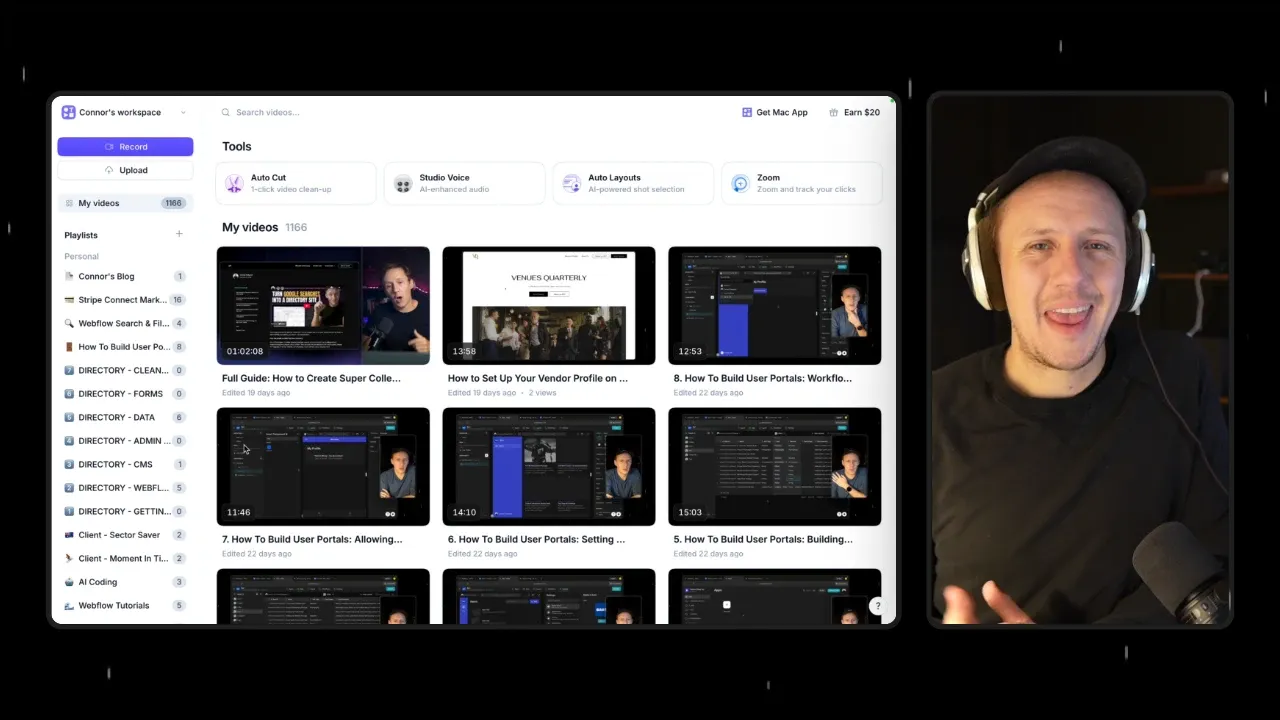
- Content: Overview of Tella's new API, two use cases (organizing videos, blog automation)
- Format: Screen recording with voiceover
The Prompt
"Get the transcript for 'Introducing the Tella API' and turn it into a blog post.

Requirements:
- SEO-friendly title without emoji
- Brief intro explaining what the API is
- Section for each use case with clear headings
- Include specific numbers and examples from the video
- Add a conclusion with next steps
- Format in markdown
- Conversational but professional tone"
The Result
Claude generated a complete blog post with:
- Title: "Tella API: Automate Your Video Production and Distribution Workflow"
- Introduction: 2 paragraphs explaining the API release and value proposition
- Section 1: "Use Case 1: Organizing 1,166 Videos Automatically"
- Section 2: "Use Case 2: From Video to Blog Post in Seconds"
- Section 3: "Getting Started with the Tella API"
- Conclusion: Call-to-action to try the API
Time spent:
- Getting transcript: 15 seconds
- Generating post: 30 seconds
- Minor edits: 3 minutes
- Total: Under 4 minutes
Compare that to the 60-90 minutes it would have taken manually!
Advanced Workflows
Once you're comfortable with the basic workflow, try these advanced techniques:
Multi-Video Compilation
"Get transcripts from these 3 videos:
- 'Tella API Intro'
- 'Tella Automation Tips'
- 'Video Organization Workflow'

Combine them into a comprehensive guide about Tella automation. Remove redundant information and organize by theme, not by video."
Series Creation
"Turn this 30-minute video into a 3-part blog series.

Part 1: Introduction and setup (first 10 minutes)
Part 2: Core workflow (middle 10 minutes)
Part 3: Advanced tips (final 10 minutes)

Make each part standalone but reference the others."
Format Variations
Create multiple pieces of content from one transcript:
"From this transcript, create:
1. A full blog post (1200 words)
2. A LinkedIn article (600 words)
3. A thread of 10 tweets
4. 5 Instagram captions
5. An email newsletter version"
Content Repurposing for Different Audiences
"I have this video transcript about automation. Create two blog post versions:

Version 1: For beginners who've never used automation tools
Version 2: For experienced developers who want technical details

Use the same core content but adjust language, depth, and examples."
Best Practices
Be Specific in Your Prompts
Vague: "Make this a blog post"
Specific: "Turn this into a 1000-word blog post with 3 main sections, bullet points for key takeaways, and a conclusion with 2 action items. Use H2 headings and keep paragraphs under 4 lines for readability."
Preserve Your Voice
If the transcript captures your unique voice, tell Claude to maintain it:
"Keep my conversational tone, including the 'ums' and 'you knows' where they add personality, but remove filler words that don't serve the narrative."
Use Transcripts as Starting Points
Sometimes the transcript isn't perfect. Ask Claude to improve it:
"This transcript has some rambling sections. Keep the key ideas but tighten up the explanations and remove redundant examples."
Optimize During Conversion
Don't just convert - improve:
"Convert this transcript to a blog post, but:
- Add transitions between sections that weren't in the video
- Expand on points that were rushed in the video
- Remove the tangent about [topic] that doesn't fit the main narrative"
Common Challenges and Solutions
Challenge: Video has no transcript yet
Solution: Tella automatically generates transcripts for most videos. If yours doesn't have one, wait a few minutes and try again. For instant access, you can also upload the video to YouTube and use its auto-generated captions.
Challenge: Transcript is messy or inaccurate
Solution: Ask Claude to clean it up:
"This transcript has some errors. Fix obvious mistakes, correct names/terms based on context, and smooth out awkward phrasing."
Challenge: Video rambles and has no clear structure
Solution: Have Claude impose structure:
"This is a freeform video. Identify the main themes, organize them logically, and create clear sections even though the original video jumped around."
Challenge: Need to maintain specific formatting
Solution: Provide a template:
"Format this as a blog post using this structure:

# [Title]

**Published:** [Date]
**Reading time:** [X] minutes

## Introduction
[2-3 paragraphs]

## Main Content
[Sections with H2 headings]

## Key Takeaways
- [Bullet point 1]
- [Bullet point 2]

## Conclusion
[Call to action]"
The ROI of Automation
Let's do the math on time savings:
Before Automation:
- 4 videos per month
- 60 minutes per conversion
- 240 minutes (4 hours) per month
After Automation:
- 4 videos per month
- 5 minutes per conversion
- 20 minutes per month
Time saved: 220 minutes (3.6 hours) per month
That's 43 hours per year you can reinvest in creating better content instead of reformatting existing content.
Beyond Blog Posts
This same workflow works for other formats:
Email Newsletters:
"Turn this transcript into an email newsletter. Friendly tone, short paragraphs, clear CTA at the end."
Course Content:
"Convert this into a lesson for an online course. Include: learning objectives, main content, practice exercises, and summary."
Social Media:
"Extract 10 quotable moments from this transcript, each under 280 characters, perfect for Twitter."
YouTube Descriptions:
"Write a YouTube description for this video. Include: brief summary, timestamps for key moments, links to resources mentioned, and relevant hashtags."
Next Steps
Now you know how to turn transcripts into blog posts in seconds. But what if you want to go further?
In the next post, we'll explore creating multiple highlight clips from long-form videos using the Tella API. You'll learn how to:
- Identify the best moments in your videos
- Automatically create trimmed clips
- Batch process multiple clips at once
- Build a content repurposing system
Ready to 10x your content output? Let's dive in.
Key Takeaways
Now that you understand transcript-to-blog automation, you can:
- Save 90% of repurposing time - Convert video content to blog posts in minutes instead of hours
- Maintain your authentic voice - Use your actual transcript as the foundation for blog content
- Create multiple content formats - Turn one video into blog posts, newsletters, social threads, and more
- Optimize for different audiences - Generate versions tailored to beginners vs experts
- Scale your content output - Process multiple videos without additional effort
Next Step: Create highlight clips from long-form videos
Resources
- Tella MCP Documentation - Official MCP setup and API reference
- Claude Desktop - Download the latest version
Related Articles
- Part 1: Getting Started with Tella MCP
- Part 3: Creating Highlight Clips with Tella API
- Part 4: Automate Your Tella to YouTube Workflow
Tools Mentioned
- Tella - Screen recording and video editing platform
- Claude Desktop - AI assistant with MCP support
FAQ
Q: Does this work in ChatGPT or only Claude Desktop?
A: The Tella MCP works with both Claude Desktop and ChatGPT Plus (with the ChatGPT Desktop app). However, Claude Desktop has a unique advantage: it creates actual Google Docs and .docx files instead of just displaying text in the chat. This means you can click to open and edit immediately without copy/paste.
Q: Why use Claude Desktop instead of the browser version?
A: Claude Desktop can create real document files (Google Docs, Word documents) that you can immediately open, edit, and share. The browser version just shows you text that you need to copy and paste. For content creation workflows, this saves significant time and friction.
Q: How do I set up Projects to save my preferences?
A: In Claude Desktop, create a new Project and add your custom instructions (tone, formatting, affiliate links, etc.). Then use that Project every time you convert videos. You can even just say "Turn this video into a blog post" and Claude will remember all your preferences automatically.
Q: What if the MCP doesn't find my video on the first try?
A: This is normal with new technology. Try rephrasing your request or asking for the "last 5 videos" instead of "last video." As mentioned in the video: "Sometimes you're just going to have to try once or twice to make it happen." It's very reliable but may need a retry.
Q: Does this work with videos that don't have transcripts yet?
A: Tella automatically generates transcripts for most videos. If yours doesn't have one, wait a few minutes after upload and check again. Transcripts usually appear within 5-10 minutes of recording.
Q: Can I publish directly to my blog platform?
A: Yes! If your platform has an MCP connection (Notion, Webflow, WordPress), you can add that MCP alongside Tella in Claude Desktop. Then you can say "Turn this video into a blog post and publish it to Notion" all in one conversation.
Q: Will the blog post sound robotic or AI-generated?
A: No - because you're starting with your actual spoken words from the transcript, the content naturally reflects your voice and style. Claude formats and structures it but keeps your authentic tone.
Q: Can I use a custom blog post template?
A: Yes! Include your template structure in the prompt or save it in your Project's custom instructions. For example: "Format this as a blog post using my standard structure: hook, problem, solution, key takeaways, CTA."
What workflows are you automating? Share your use cases in the comments!
Ready to learn more? Check out our Playbooks for step-by-step guidance.
View PlaybooksContinue Reading