
Webflow AI Site Builder Review – First Look at AI Website Builder
Webflow just launched its AI Site Builder, an AI-powered website builder that generates full websites in minutes. In this first-look review, I test how well Webflow AI works, what it gets right, and where it still needs improvement. Is this the future of AI website builders? Find out now.

Getting Started with Webflow’s AI Site Builder
The first step is simple—Webflow asks if I’m building a business or personal site. I go with business and decide to create a fictional web design agency called HueSync Web Agency. Next, Webflow AI asks for a value proposition. I keep it simple: 👉 "We create production-ready websites in minutes." It also suggests adding location and trends, so I throw in: 👉 "We are an agency from Canada." At this point, it's clear Webflow AI is using these prompts to shape the design, branding, and content. The setup is fast and requires almost no effort—but I can already tell that a better prompt would get better results. Now, onto the next step—choosing a style.
Customizing a Website with Webflow AI
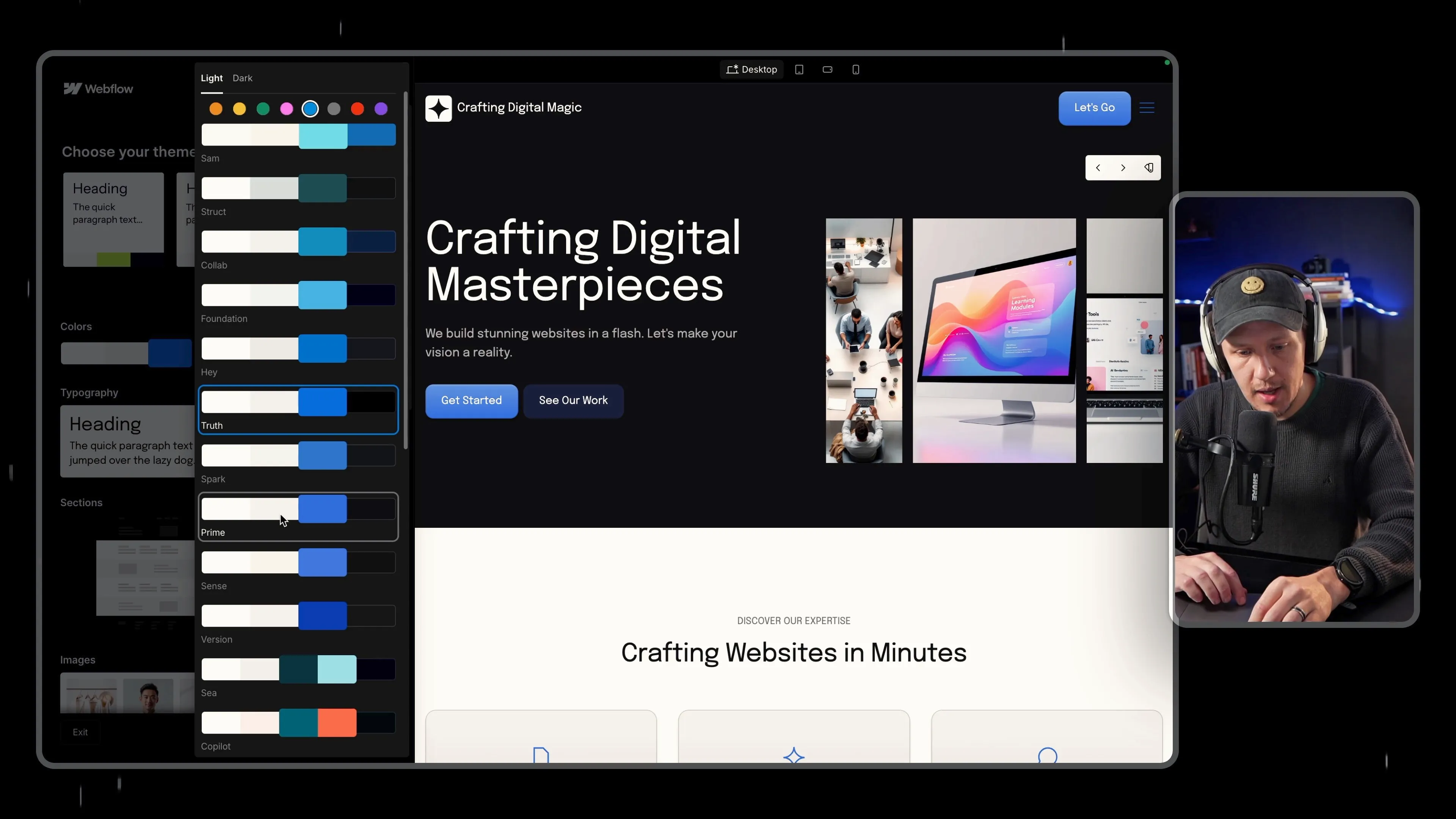
Now it’s time to define the look and feel of the site. Webflow AI gives me a few preset style options—Minimal, Futuristic, Elegant, Bold, etc. Instead of overthinking it, I stick with the AI-recommended option to see what it does. From here, I can start tweaking:
- Colors & Typography – The AI suggests a full color scheme and font pairing. If I want, I can swap colors or pick my own, but for now, I leave it as is.
- Layouts & Sections – Webflow AI automatically structures the homepage with different sections: Hero, Features, About, Contact, etc. It also lets me rotate through different layout styles for each section.
- Images & Graphics – It even suggests stock images and AI-generated visuals based on the theme. These are placeholders, but they match the vibe of the site. At this stage, it already looks like a Webflow template—which is both good and bad. Good because it’s polished right away. Bad because if you don’t tweak much, your site might feel generic. With the styling done, the AI build process starts. Now, let’s see what it actually puts together.
How Webflow AI Builds a Website
Now that I’ve set the basic structure, Webflow’s AI generates the full site. This takes just a few seconds, and once it’s done, I’m looking at a fully designed homepage with different sections, placeholder content, and styling applied.
First Impressions
- It feels like a pre-made Webflow template, but it’s been customized to match my inputs.
- The layout is clean, and it’s immediately usable without much tweaking.
- The AI followed my style selection, but I can already tell that more customization will be needed if I want to make it unique.
How Much Control Do I Have?
Before moving this into Webflow, I can still: ✔️ Swap out different layout variations for each section. ✔️ Adjust colors and fonts on the fly. ✔️ Change out images and graphics to fit my branding. So far, this is fast—but the real question is, how editable is this inside Webflow? Let’s move it over and find out.
Fine-Tuning an AI-Generated Website in Webflow
Before moving the site into Webflow, I want to see how much I can tweak inside the AI builder itself. Webflow gives a few customization options:
1. Swapping Layouts & Sections
- Each section (hero, features, testimonials, etc.) has multiple layout variations I can cycle through.
- It feels like a component library—Webflow AI is just pulling pre-made designs and swapping them in.
- This is great for speed but less useful if you want full creative control.
2. Adjusting Stock Images & AI-Generated Graphics
- Webflow AI suggests images based on my site’s style.
- Some of these look like AI-generated placeholders, while others feel more like standard stock photos.
- If you’re looking for unique branding, you’ll likely need to replace these yourself.
3. Customizing Buttons, Forms, and Cards
- AI lets me tweak button shapes, sizes, and styles.
- Same for forms and cards—I can adjust things like roundness, spacing, and design variations.
- It’s basic customization, but it helps make the design feel a little more unique. At this point, I’ve explored what’s possible inside the AI builder. Now it’s time for the big test—importing the site into Webflow and seeing how editable it really is.
Importing an AI Website from Webflow AI into Webflow Editor
Now that the AI-generated site is ready, it’s time to bring it into Webflow and see how well everything transfers.
Clicking "Start Building"
- Webflow takes the AI-generated design and moves it into the Webflow Editor.
- This is where I can see if the structure, styling, and layouts hold up.
- First impression: The transfer is smooth, but now I need to check how much I can edit.
What Transfers Well?
✅ The overall layout stays intact. ✅ Global styles (colors, fonts, spacing) are properly applied. ✅ The site is mobile-responsive right away.
What Needs Tweaking?
⚠️ Some image placements feel generic and will need custom assets. ⚠️ The AI-generated copy is basic and needs rewriting. ⚠️ Forms and buttons may require manual adjustments for branding.
For Beginners vs. Experienced Webflow Users
- If you’re new to Webflow, this is good enough to launch fast—just update the text and publish.
- If you’re a designer, this is just a starting point—you’ll probably want to refine things further. The AI does a lot of the heavy lifting, but it still requires manual adjustments to get everything right. Now, let’s see how easy it is to add new pages with AI.
Using Webflow AI to Generate New Pages
Now that the homepage is built, I want to see how well Webflow’s AI handles creating additional pages. Instead of manually designing them, I use the AI-powered page generator to create a Contact page.
How It Works:
- Click "Create a New Page"
- Select "Generate with AI"
- Choose the type of page (e.g., Contact, About, Services)
- AI builds a new page layout based on my existing design
Does It Match the Rest of the Site?
✅ The design is consistent with the homepage (same fonts, colors, spacing) ✅ The AI follows my existing style, so the page doesn’t feel out of place ✅ The layout is pre-filled with placeholder text and images
What Needs Fixing?
⚠️ Some sections feel a bit generic—I’d need to adjust the layout manually ⚠️ Images don’t always match the brand vibe ⚠️ Forms aren’t set up yet—I still need to configure them manually
Final Takeaway on AI-Generated Pages
- Good for speed—You get a full page structure in seconds.
- Still needs refinement—You’ll have to tweak layouts and copy.
- Great for beginners, decent for pros—If you need a quick starting point, this saves time. Now, let’s see what customization options are available inside Webflow itself.
Editing an AI Website in Webflow – Customization & Tweaks
Now that the AI-generated site is inside Webflow, I want to see how easy it is to customize and refine the design. Webflow gives me full access to its design tools, but the real question is: how much of the AI-generated site is actually editable?
Using the Variables Panel
- Webflow automatically assigns variables for colors, typography, and spacing.
- Instead of manually changing colors one by one, I can update them globally in the Design Systems panel.
- This is a huge time-saver compared to adjusting styles individually.
Modifying Fonts and Colors
- Changing fonts is super easy—I just select a new font in the Variables Panel, and it updates across the entire site.
- The AI-generated color palette is decent, but if I want to tweak it, I can do that in one click.
- Since Webflow uses global styles, any color or font update applies site-wide instantly.
Checking Mobile Responsiveness
- The site looks mobile-friendly by default, but I want to test a few key sections.
- Some layouts need slight adjustments, especially in padding and spacing.
- Webflow’s flexbox and grid tools make these tweaks simple, but it’s not completely "set and forget"—you’ll still need to review things manually. At this point, the AI has done a lot of the heavy lifting, but final adjustments still require some hands-on work. Now, let’s wrap up with some final thoughts on Webflow’s AI Site Builder.
Ready to learn more? Check out our Playbooks for step-by-step guidance.
View PlaybooksContinue Reading