Airtable Scripts: How to Bulk Update Multiple Records Easily
Discover how to run scripts for multiple records in Airtable and master bulk updates with ease. Learn to use the for function to automate your workflows.

Tired of spending hours manually updating records in Airtable, one by one? Imagine turning a tedious task that takes hours into a 30-second process! Whether you’re managing projects, tracking inventory, or updating customer data, this step-by-step guide will show you how to automate bulk updates in Airtable using a simple script. By the end, you’ll not only save time but also feel empowered to tackle automation with confidence—even if you’re new to scripting. What We’ll Cover:
- Why bulk updating with a script is a game-changer for productivity.
- How to set up the Airtable Scripting app in minutes.
- A beginner-friendly explanation of how the script works.
- A real-world example to help you get started immediately.
- Practical tips for ensuring your script runs smoothly every time. Let’s transform how you manage Airtable today!
Why Use a Script for Bulk Updates?
Imagine you need to update the status of all your records or adjust a field value for a large dataset. Doing this manually:
- Takes too much time.
- Increases the chance of errors.
- Gets repetitive and tedious. Using a script solves these issues by automating the updates. Airtable’s Scripting app allows you to write JavaScript code to make changes quickly and accurately.
Getting Started: Setting Up the Scripting App
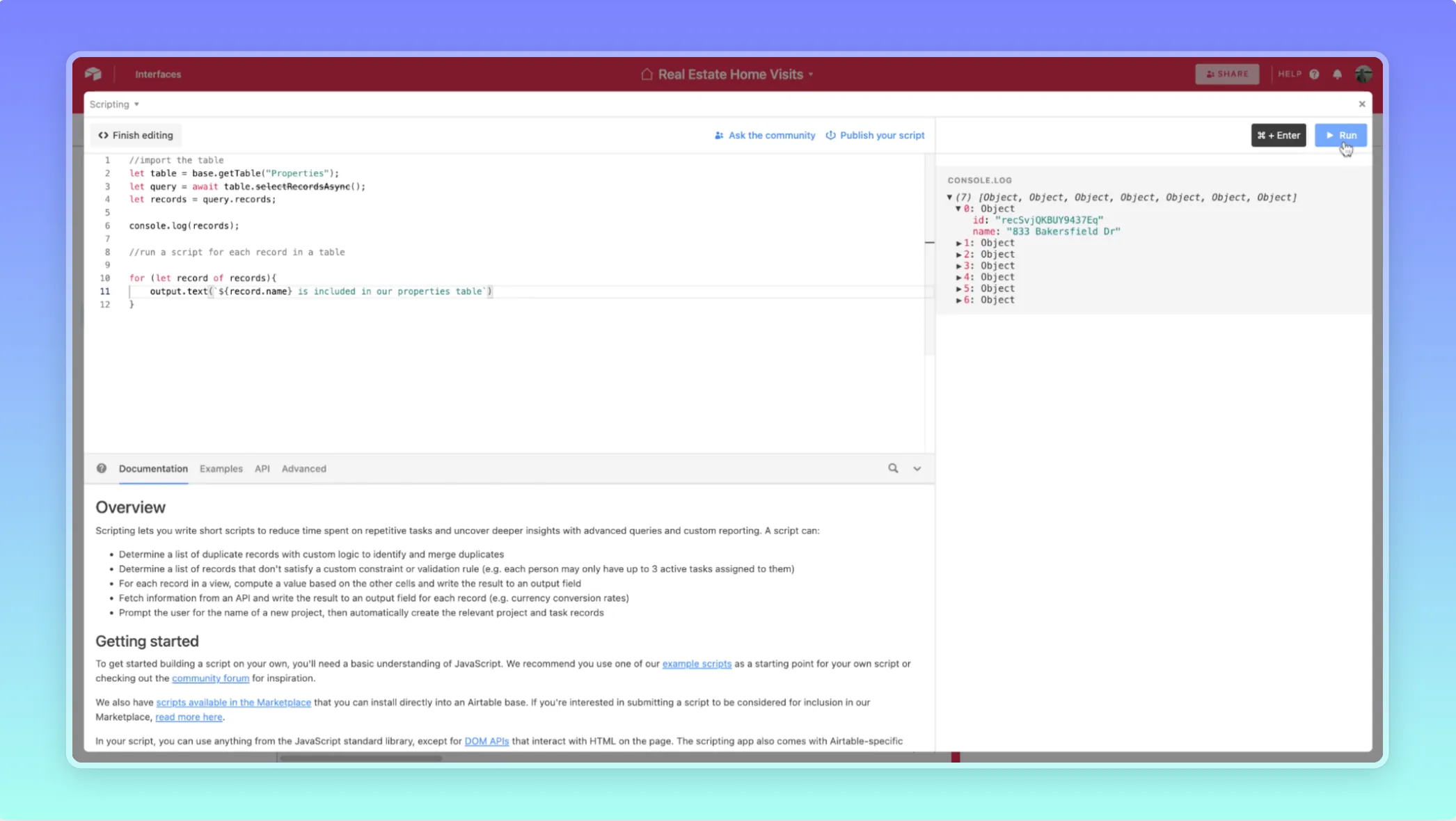
Before we write and run the script, you’ll need to set up the Airtable Scripting app. Here’s how:
- Open your Airtable base.
- Click on the “Apps” button in the upper right corner.
- Click “Add an app.”
- Search for “Scripting” and add it to your base.
- Open the Scripting app, and you’re ready to write and run your script.
The Script: How It Works
Here is the script we’ll be using:
Breaking Down the Script
Let’s understand how this script works step by step.
- Define the Table and Field
- Replace
YourTableNamewith the name of your table. - Replace
YourFieldNamewith the name of the field you want to update. - Replace
New Valuewith the value you want to apply to all records in that field.
- Replace
- For example, if you want to set all records’ status to “Complete,” the
newValueshould be "Complete." - Access the Table
let table = base.getTable(tableName);retrieves your specified table in the base.
- Fetch Records
await table.selectRecordsAsync();gets all the records in the table so we can process them.
- Prepare the Updates
updatesis an array where each entry specifies the record ID and the field value to update.
- Batch Updates
- Airtable limits bulk updates to 50 records at a time. The script processes records in batches using a
whileloop to ensure this limit isn’t exceeded.
- Airtable limits bulk updates to 50 records at a time. The script processes records in batches using a
- Run the Updates
- The
updateRecordsAsyncfunction updates each batch of records until all records are processed.
- The
- Output Confirmation
- Once all records are updated, the script outputs “Bulk update completed!”
How to Run the Script
- Copy the script and paste it into the Scripting app in Airtable.
- Replace the placeholders (
YourTableName,YourFieldName, andNew Value) with your actual table and field details. - Click “Run” to execute the script.
- Watch as your records are updated in seconds!
Example Use Case
Let’s say you have a table named “Tasks” with a field called “Status.” You want to mark all tasks as “Complete.” Here’s how the script would look:
Tips
- Test with a small dataset first to ensure the script works as expected.
- Back up your Airtable base before running the script, especially if you’re making significant changes.
- Use clear and descriptive names for your table and fields to avoid errors.
Wrapping Up
With this script, you can save countless hours and streamline your workflows in Airtable. Whether you’re managing a project, tracking inventory, or updating customer data, scripting is a powerful tool to add to your arsenal. If you’re ready to take your Airtable skills to the next level, try out this script and watch how it transforms your productivity. Have questions or need further help? Happy automating!
Ready to learn more? Check out our Playbooks for step-by-step guidance.
View PlaybooksContinue Reading